Repos
Continuous scans for repository activity
Repository scans are continuous scans that run against repository activity.
Repository scans are intended to:
- Continuously monitor repository changes for exposed secrets
- Alert on findings outside local developer hooks
- Complement local pre-commit and pre-push checks
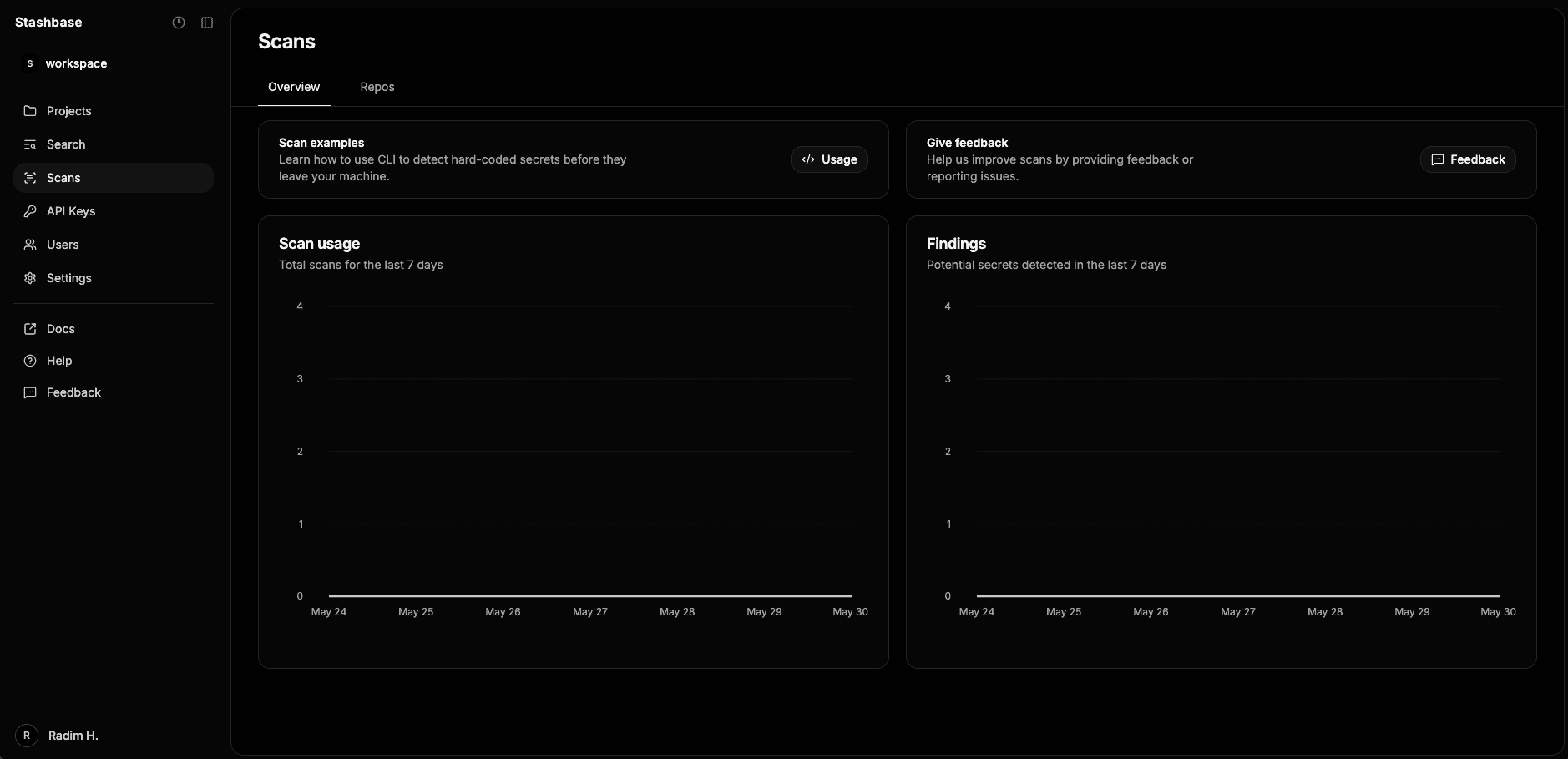
Repo vs CLI scans
Use both workflows together:
- CLI scans to catch issues before commit/push
- Repository scans as continuous protection on repository changes
Configuration
You can configure repository scans in the dashboard:
- Go to Scans.
- Open the Repos tab.
- Create a repository scan configuration.
When creating the configuration, you can set:
- Branch strategy:
- Default branch only
- Custom branch patterns (
release/*,feat/*) - Specific branches (
main,develop) - All branches
- Ignored secrets:
- Secret value hashes
- Secret value regexes
- Excluded files:
- File paths or glob patterns
Findings and triage
If continuous scanning detects a hardcoded secret, open the related repository scan configuration page and go to Findings. This is where you triage and track the status of each finding. Stashbase also shows the relevant code file snippet with the detected issue highlighted, so you can quickly understand where the exposure was found.
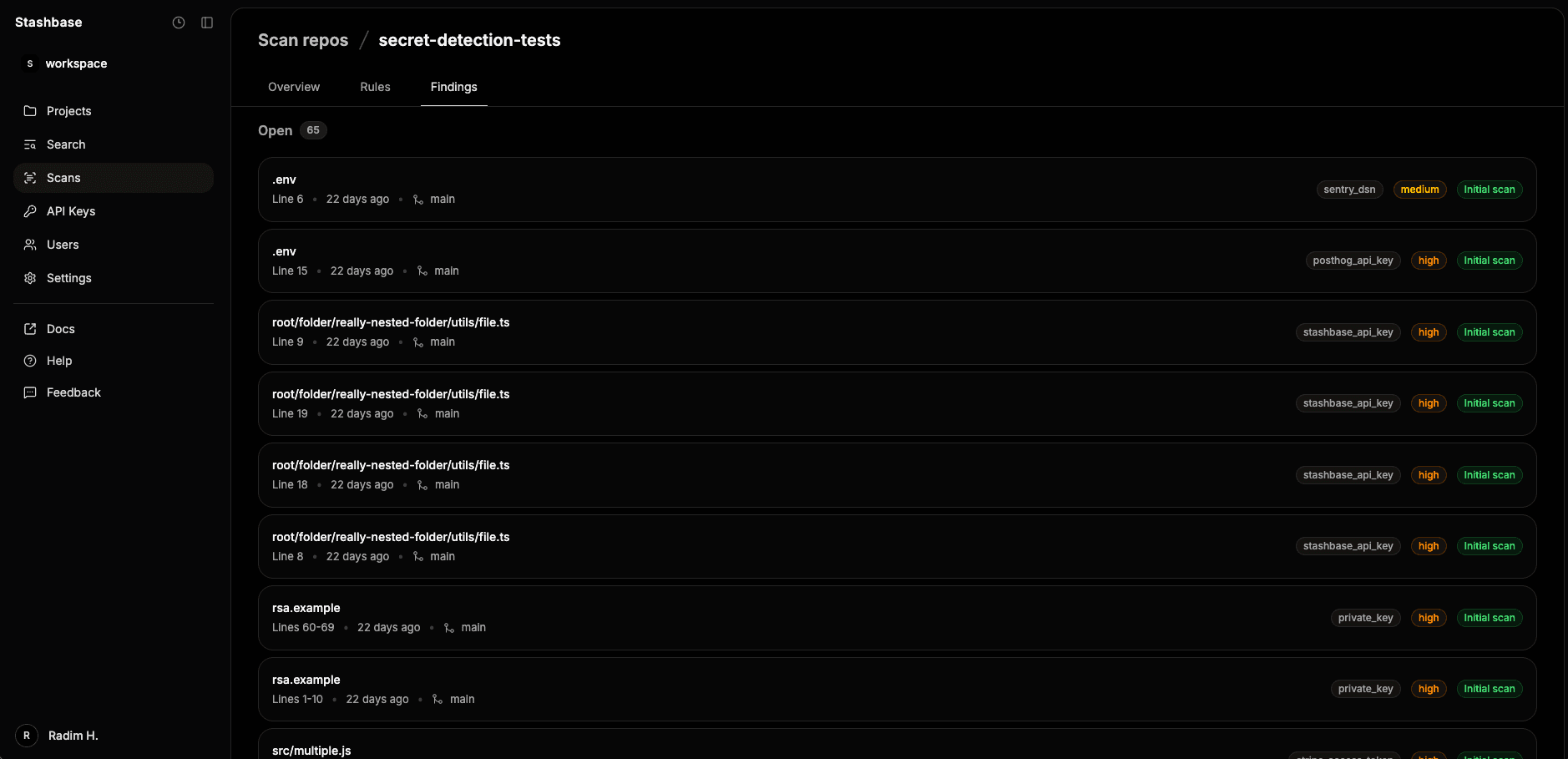
When a finding is detected by a repository scan, the user who created the repository scan configuration is notified by email.
Each finding can be handled in one of two ways:
Resolved: Use this when the issue is confirmed and remediated.Dismissed: Use this when the finding should not be treated as an active security issue.
Resolving a finding is more than closing an alert. You should review the matching secrets in Stashbase and update them as part of remediation. After the matching secrets are reviewed and updated, Stashbase marks them as a security patch, and the finding can be treated as resolved.
If a finding does not require remediation, dismiss it with the appropriate reason:
False positive: The detection does not represent a real secret exposure.Ignored: The secret is intentionally ignored based on your configured ignore rules.Duplicate: The finding refers to an issue that is already tracked by another finding.
AI Fixes
AI Fixes help generate remediation suggestions for detected repository findings.
Instead of only identifying exposed secrets, Stashbase can suggest how to fix the issue based on the repository context.
Typical suggestions include:
- Moving hardcoded secrets to environment variables
- Replacing secrets with references from your application's configuration
- Explaining why the finding was detected
- Providing language-specific remediation guidance
AI-generated fixes should always be reviewed before being applied.
Privacy
AI Fixes are designed with security in mind.
- Detected secret value is not sent to the AI model.
- Detected secrets are automatically redacted before processing.
- Requests are sent through private Azure AI Foundry endpoints.
- All communication is encrypted in transit.
- AI models do not receive access to your Stashbase workspace or stored secrets.
Only the minimum repository context required to generate a useful remediation suggestion is sent.